
Downloading files from the internet#
So far, files on the JupyterHub file system are either created directly within JupyterHub or uploaded from the local computer. In the latter case, the file is often first downloaded from the internet to the local computer. While this workflow is fairly straight-forward, it can be inefficient when large files are involved.
Instead, in many situations it is possible to download the file directly onto the JupyterHub file system using python, which is the topic of this section.
File retrieval via urlretrieve()#
If a file is available through a static link (usually, this means that you can right click to copy the link of the file from the web browser), we can use the urlretrieve() function from the urllib.request submodule to directly save the file onto the JupyterHub file system. For example, on GitHub, the zip file of an entire repository is accessible from a static link.
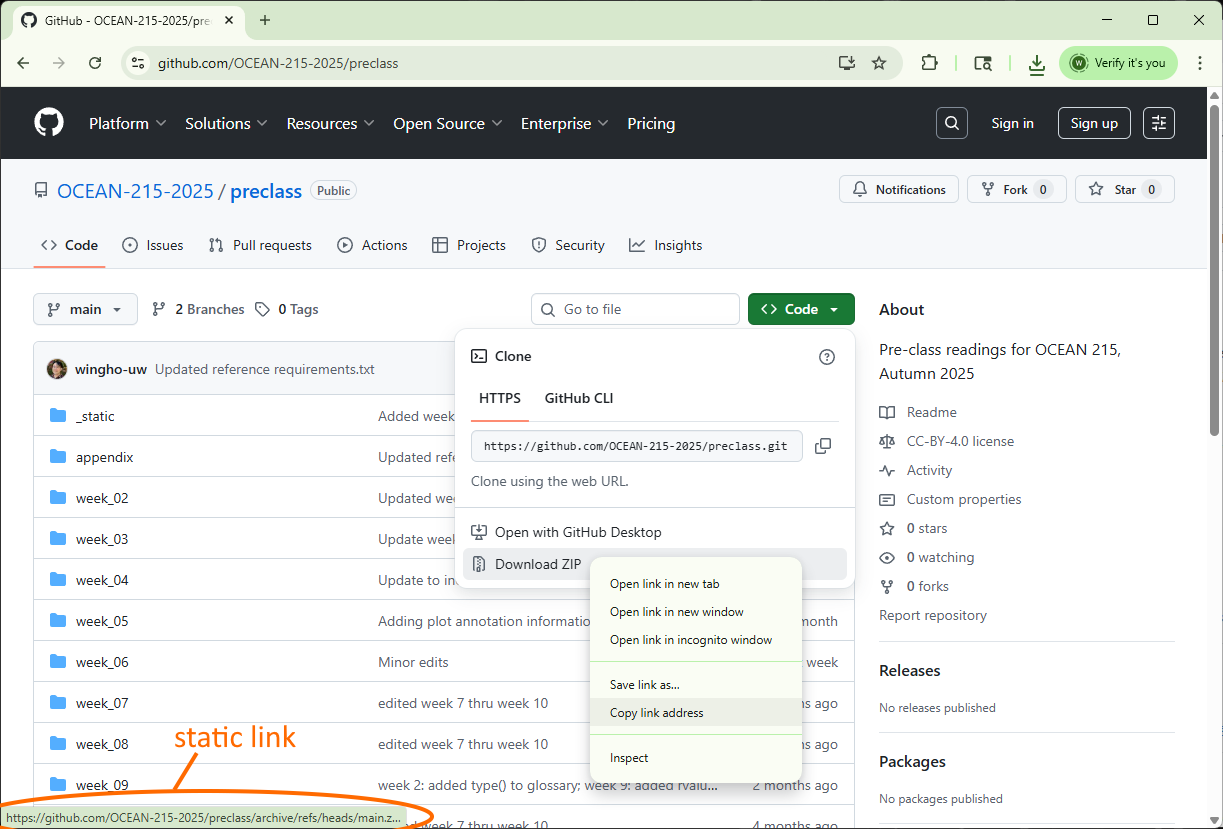
To download this file onto the JupyterHub file system directly, we use the “copy link address” option in Chrome (or equivalent option in other web browsers) to copy the static link, then feed it as the first argument of the urlretrieve() function. The urlretrieve() function also requires a second argument, which is the save file location (specify using a string as explained in the previous section). For example:
from urllib.request import urlretrieve

link = "https://github.com/OCEAN-215-2025/preclass/archive/refs/heads/main.zip"
urlretrieve(link, "output/preclass.zip")
('output/preclass.zip', <http.client.HTTPMessage at 0x28ab26002f0>)
If we now go to the output subfolder (which you may need to create before running the above code), we’ll find the zip file in there.
Unpacking a zip file in python#
Sometimes the file you downloaded from the internet is a .zip file, and you need to unpack it to actually access the data you need. In python, the zipfile module can be used to extract the files inside a zip file. The simplest usage is to use the .extractall() method of a zipfile object to extract the entire content of the zip file in one go. In our example:
import zipfile

with zipfile.ZipFile("output/preclass.zip", 'r') as zip_ref:
    zip_ref.extractall("output")
In the above, the location of the zipfile is specified as the argument of the zipfile.ZipFile() call, while the location to unpack the contents to is specified as the first argument of the zip_ref.extractall() call.
In our case, the zip file is located at output/preclass.zip relative to the working directory, while the unpacking location is the output subfolder.
We note that the above code is a special case of the with python syntax. We’ll not go into the details of the with construct. However, do note that the colon (:) and the indentation are part of the syntax.
Downloading “public” Google Drive files#
A typical Google Drive link does not point directly to the underlying file contents but to a web interface that then allows you to download the content. When you hover above the ultimate download button, you will notice that it is not a static link. The third-party gdown module provides a way for direct download in such circumstances.
Note that gdown can only be used on “public” files, i.e., files that are shared so that whoever have the link can download its content. In this course we will occasionally work with large files that are shared this way, and if you have large files in your final project they should also be shared in a similar manner.
To use gdown, we first need to extract the file id from the link. A typical Google Drive link may look as such:
https://drive.google.com/file/d/1rF9ZTNkSYald4NbMcNpK-_ilFDYvbjZz/view?usp=sharing
In the above case the file id is 1rF9ZTNkSYald4NbMcNpK-_ilFDYvbjZz.
Once we have the id, we supply it as the id argument to gdown.download(). In addition, we supply the destinating file location as the output argument of the same function. For example:
import gdown

gdown.download(id="1rF9ZTNkSYald4NbMcNpK-_ilFDYvbjZz", output="output/google_drive_example.csv")
Downloading...
From: https://drive.google.com/uc?id=1rF9ZTNkSYald4NbMcNpK-_ilFDYvbjZz
To: C:\Users\wingho\git-uw\preclass\week_06\output\google_drive_example.csv
0%| | 0.00/37.0 [00:00<?, ?B/s]
100%|███████████████████████████████████████████████████████████████████████████████████████| 37.0/37.0 [00:00<?, ?B/s]
'output/google_drive_example.csv'
Once the above line of code is executed, you can find the google_drive_example.csv file under the output subfolder.
Remark: APIs for file access#
Finally, in addition to web interfaces, some of the database you encounter in this course may provide a dedicated third-party python module for accessing, and possibly processing (e.g., subsetting), its data. The JupyterHub we used in this class includes a number of modules of this kind, and an example of using them can be found in the Appendix.