
Using Jupyter notebook#
Jupyter notebooks: what and why#
In this course we’ll execute python codes mainly using Jupyter notebooks. These are files with .ipynb extensions. The advantage of Jupyter notebooks are:
You can execute python codes in small units, which makes debugging easier.
You can execute python codes interactively, i.e., you can switch between debugging and executing fairly seamlessly.
You can mix richly-formatted texts with python codes within the same file. This is especially useful if you want to document what your codes are doing.
Creating, uploading, downloading, and opening a new Jupyter notebook#
To create a new Jupyter notebook in JupyterHub, click on the
+symbols either at the top of the main panel or at the top of the left panel, which brings up a launcher. Then, just click on the icon that says “Python 3 (ipykernel)” from the launcher.To upload a file onto JupyterHub, all you need to do is to drag the file from your desktop / file browser to the left pane of the JupyterHub.
To download a file onto your computer, right click on the
.ipynbfile from the left pane, and select download.To edit an existing Jupyter notebook, left click on the file on the left pane and it will be displayed on the main panel.
Note: in addition to working with Jupyter notebooks, we can also use JupyterHub to preview the contents of text and csv (comma-separated values) files. We will make use of JupyterHub’s previewer in later weeks.
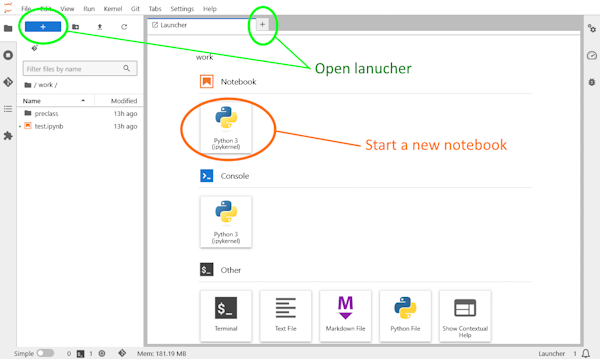
Figure: how to start the launcher page and create a new Jupyter notebook
Basic Jupyter notebook manipulation#
A Jupyter notebook is comprised of cells. There are 3 types of cells: raw, markdown, and code. In this course we will mainly work with the latter 2 types. Visually, a code cell is distinguished from the markdown cell by a gray background. The markdown cell is used for displaying richly-formatted texts, while code cell is used to execute python codes.
In general, there are two modes of operation when working with a Jupyter notebook: the command mode and the edit mode. The former is for cell-level operations while the latter is for editing the content within a cell. If you see a flashing cursor in your notebook, you are likely in the edit mode. In addition, the current cell being edited is usually indicated by a tight blue line frame, whereas in command mode the blue frame extends all the way to the left.
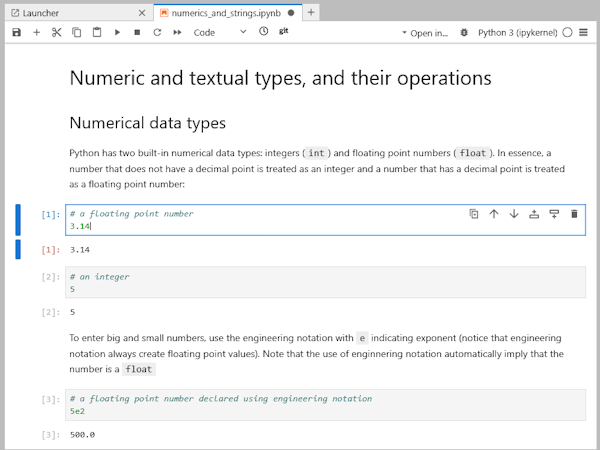
Figure: Jupyter notebook in edit mode
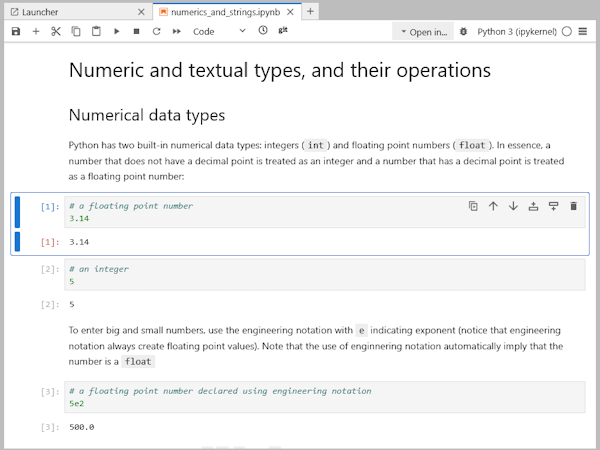
Figure: Jupyter notebook in command mode
A few operations that are useful in command mode:
mconverts the current cell into a markdown cellyconverts the current cell into a code cellainserts a cell above the current cellbinserts a cell below the current cellccopies the content of the current cell, andvpastes itd+ddeletes the current cellzundoes the previous action
Running code in Jupyter notebook#
Texts inside a code cell are intended to be executed as python code. To run the codes in the current cell, press Shift + Enter in either edit mode or command mode. You can also use the play button (⯈) on the top of the main panel to execute the current cell.
Importantly, the python backend (“kernel”) cares only about the order you execute the codes, not the order they are presented in the notebook. Thus, as you program interactively, there might be “ghost” variables that no long exists in the notebook, or cells that are misplaced in terms of execution order. We strongly recommend you occasionally to restart the kernel and rerun your codes sequentially. To restart the kernel, use the refresh button (⟳) on the top of the main panel. You may also find the restart and run all option (⏩) useful, particularly before you submit your Jupyter notebook in homework, activities, etc.
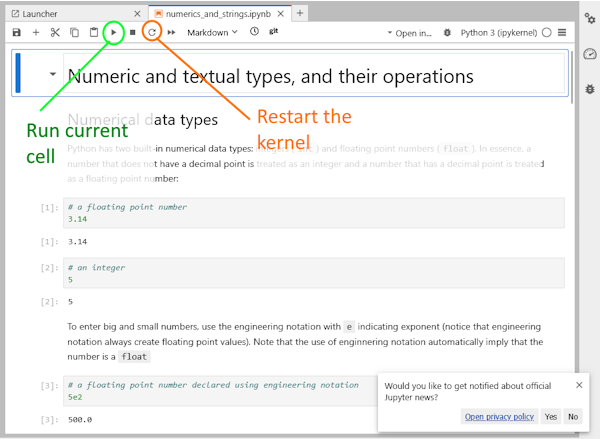
Figure: Buttons to run the current code cell and restart the kernel
Markdown formatting#
In a markdown cell certain characters have special meaning. Some useful examples:
To create a list, start the line with a
+, followed by a spaceTo set a block of texts in boldface, surround the block with a pair of
**To italicize a block of texts, surround the block with a pair of
_To set a block of text in monospace, surround the block with a pair of
`To create headings, start the line with a sequence of
#, followed by a space (the more#the lower the heading in the hierarchy)
Comments within code cell#
Within a code cell you may occasionally see lines that start with a
#symbol. Such lines serve the purpose of comments in the python language. In other words, content of the line to the right of the#symbol is ignored by the python executable when the cell is run.In fact, you can start a comment with a
#in the middle of a line. The content to the left of the#symbol is executed as code, whereas texts after the#symbol are ignored.In Jupyter notebook the role of comments somewhat overlaps with that of a markdown cell. However, when working with a python script, where every line is by default executable codes, comments are useful in helping a human reader to understand what the codes are doing.