
Navigating file systems#
File system navigation via text#
Up to this point we have been including data directly in the Jupyter notebooks. This only works if the data is modest in size, and even then it is not the best practice since data and codes should reside in separate places.
Thus, this week we’ll introduce tools to read files in python. And our first step is to understand how python locate files on your local computer. In particular, we will learn how to specify file location using a string.
Now, you are probably familiar with the directory structure of your local files: your files are organized in folders (a.k.a. directories), and each folder can contain files and more folders. When you map out that structure, you will find that it assemble a tree, like so:
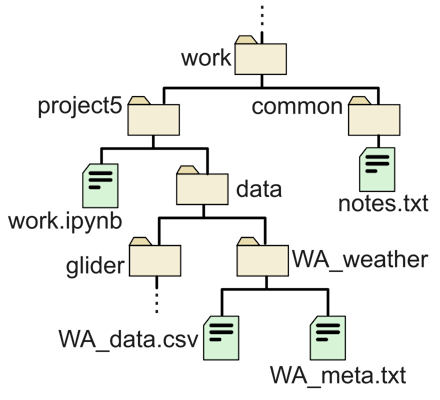
(In computer science trees are customarily inverted)
The idea is that once you map out this tree structure, you can specify the path from one place (usually a folder) to another (a file or a folder) using a string. The basic rules are:
To go up one level, use
..To go down one level, specify the name of the subfolder or file
If the location is a folder, add a
/to the end
For example, the file path to go from project5 to notes.txt would be:
../common/notes.txt
And to go from project5 to WA_meta.txt, we’ll need:
data/WA_weather/WA_meta.txt
The working directory#
There is a special “starting point” in the file system: the working directory. When you are working on a Jupyter notebook, the working directory is usually the directory that immediately contains the .ipynb notebook file. If you want to know exactly where is your working directory, you can use the os.getcwd() function, which becomes accessible after you import the (built-in) os module:
# import the os module
import os
# print the working directory
os.getcwd()
'C:\\Users\\wingho\\git-uw\\preclass\\week_06'
Then, to locate a file, you just need to follow the previous section, using your working directory as starting point.
Additional file system tools in os#
If you ever need to change the working directory, you can do so using os.chdir(). For example:
os.chdir("../")
os.getcwd()
'C:\\Users\\wingho\\git-uw\\preclass'
This can be convenient if you need to work with a data folder that contains multiple files you want to load.
Next, to list all the files and subfolders inside a directory, you may use os.listdir()
os.listdir("week_06")
['.ipynb_checkpoints',
 'data',
 'file_path.ipynb',
 'img',
 'internet_files.ipynb',
 'matplotlib_datetime.ipynb',
 'output',
 'pandas_and_data.ipynb',
 'pandas_datetime.ipynb',
 'pandas_operations.ipynb',
 'wk06_glossary.md',
 'wk06_intro.md']
Note that this list both files and directory. If you need to include only files, you can use os.path.isfile() to filter the entries (note: there is also a os.path.isdir() to check if the result is a folder):
files = []
for name in os.listdir("week_06"):
    if os.path.isfile("week_06/" + name):
       files.append(name)

print(files)
['file_path.ipynb', 'internet_files.ipynb', 'matplotlib_datetime.ipynb', 'pandas_and_data.ipynb', 'pandas_datetime.ipynb', 'pandas_operations.ipynb', 'wk06_glossary.md', 'wk06_intro.md']